


Need UC for the Royale Pass or a crate before you queue? Top up PUBG Mobile UC with your Player ID only.
PUBG Mobile 120 FPS settings (August 2026)
Updated on 2026-08-27: App Store and Play Store list Version 4.5.0 (9 July 2026). Version 4.2 set the graphics budget. 4.5 widened the 90/120 whitelist. Confirm Ultra Extreme in your own Frame Rate menu. Krafton does not publish one global model PDF.
Goal | Graphics | Frame Rate | What you get |
|---|---|---|---|
120 FPS | Smooth | Ultra Extreme | 8.33 ms frames. Combat only. Lobby stays near 90. |
90 FPS | Smooth, HD, or HDR | Extreme+ / 90 FPS | Lower heat. Ranked floor for most phones. |
60 FPS | Any preset, or Ultra HDR | Extreme | Budget hardware, or a flagship that throttled. |
Graphics preset (4.2+) | Frame rate cap on supported devices |
|---|---|
Smooth | 90 or 120 FPS |
HD / HDR | 90 FPS |
Ultra HDR / Extreme HDR | 60 FPS |
Smooth is the only preset that can open Ultra Extreme. HD and HDR look sharper and stop at 90. Ultra HDR and Extreme HDR are downloadable high presets. They will not show 120.
Frame Rate labels:
Menu name | Frames |
|---|---|
Low | about 20–25 |
Medium / High | 30 |
Ultra | 40 |
Extreme | 60 |
Extreme+ / 90 FPS | 90 |
Ultra Extreme | 120 |
120 FPS draws a new frame every 8.33 ms. 90 FPS is 11.11 ms. 60 FPS is 16.67 ms. You see recoil steps and peek motion sooner. A locked 90 through the third circle beats a 120 that hitches when two squads collapse.
The full model table lives on the PUBG Mobile 120 FPS device list. Open Smooth → Frame Rate on your unit. That menu is the test.
How to enable Ultra Extreme
Update PUBG Mobile from the store or the official PUBG MOBILE site to 4.5.0 or newer.
Lock the system display at 120 Hz (or the highest fixed rate). Auto, 60, or 90 hides Ultra Extreme on many Androids.
Close background apps. Leave battery above 25%. Keep about 20 GB free.
Settings → Graphics & Audio → Combat.
Set Graphics to Smooth.
Open Frame Rate and pick Ultra Extreme. There is no separate 120 slider on the row. The row is the switch.
If Frame Rate Detailed Adjustment appears, pick Manual Adjust and drag the slider to 120. The helper text should read that the current frame rate is 120 FPS.
Style: Classic or Colorful. Shadows off. Anti-aliasing off. Auto-adjust graphics off. Show FPS on.
Force-close the game, then launch again.
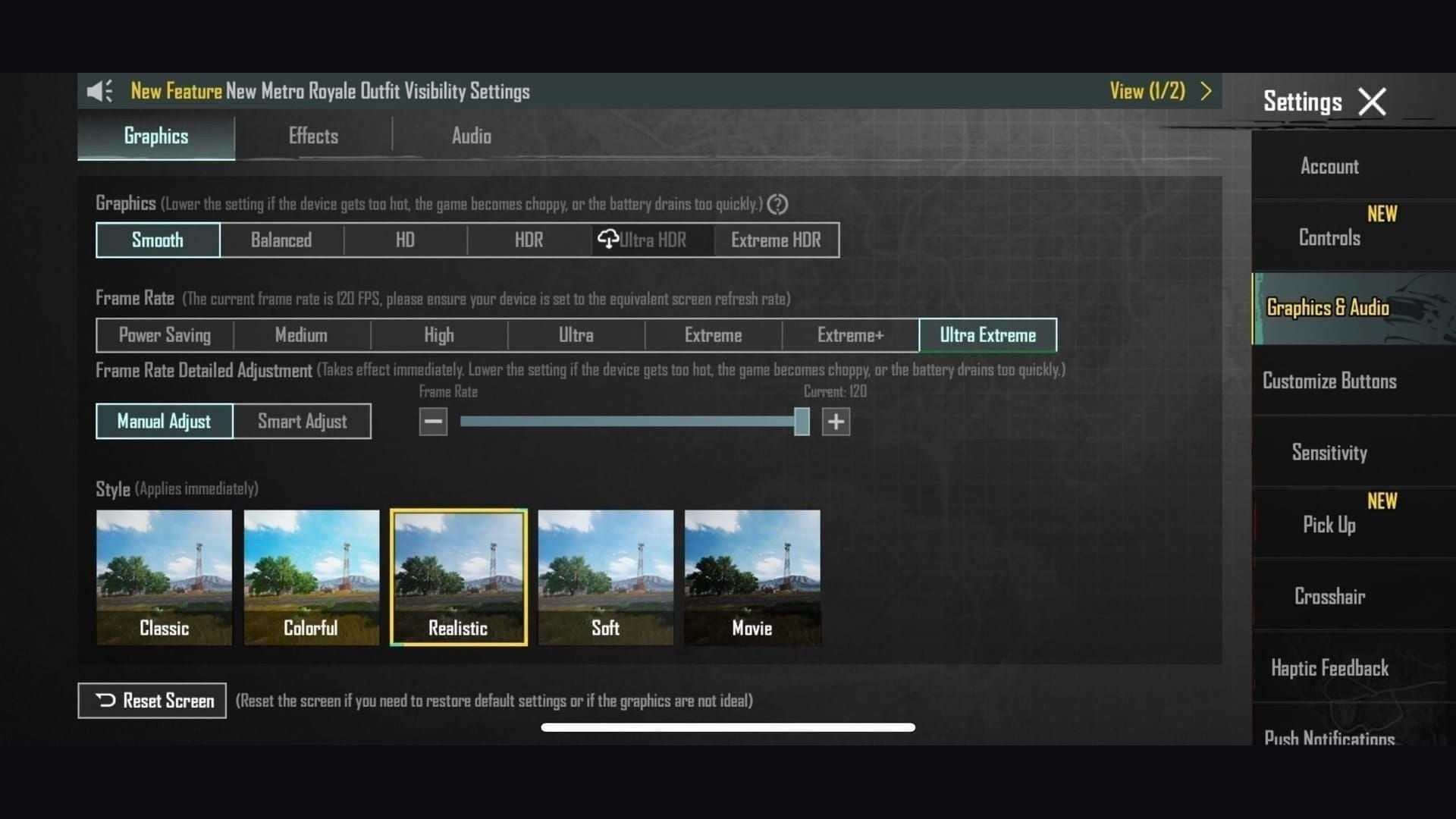
Combat is where Ultra Extreme runs. A 90 reading on the home screen is normal.
Device check for 60, 90, and 120 FPS
Krafton has to whitelist the exact SKU. Two phones with the same Snapdragon 8 Gen 2 can disagree in the menu. A 120 Hz panel is the floor, not a guarantee.
Requirement | Minimum for Ultra Extreme | Better for a full session |
|---|---|---|
Display | 120 Hz, locked in system settings | 120 Hz+ LTPO, high touch sampling |
Chipset | Snapdragon 8 Gen 2, Dimensity 9200 / 9300, or Apple A15 + ProMotion | Snapdragon 8 Elite, Dimensity 9300+, A17 Pro or newer |
RAM | 8 GB | 12 GB+ |
Storage | about 20 GB free | 20 GB+ free, UFS 4.0 |
Game version | 3.2 first shipped 120 FPS | 4.5.0 or newer |
4.5 lists name iPhone 13–16 Pro / Pro Max (some lists add 17 Pro / Pro Max), iPad Pro 2020+, Galaxy S23–S26 and Z Fold 5–7, OnePlus 11–15, Pixel 8–10 Pro, Xiaomi 13–16, ROG Phone 7–9, and RedMagic 9–11. Confirm the row after you update. The device list tracks those SKUs.
Base iPhone 14 / 15 / 16 stay at 60 Hz, so they cannot show 120 unique frames. iPhone 17 is the first base model with ProMotion. August 2026 lists name 17 Pro and 17 Pro Max. Open the menu if you own a base 17.
Dimensity flagships (9200 / 9300 and up) now sit on the same whitelist as Snapdragon 8 Gen 2 and newer. Older write-ups that treated every Mali GPU as a lost cause are out of date. Mid-range chips such as Snapdragon 7+ Gen 3 sit below a locked 120.
Phones with 3–4 GB RAM should aim at a flat 60 on Smooth. The old PUBG Mobile LITE client left the stores in 2024. Krafton opened pre-registration for PUBG Mobile Light on 25 August 2026 as a smaller main-game client (about 1 GB on Android, under 2 GB on iOS). Treat Light as the low-storage path once it launches, not as a 120 FPS unlock.
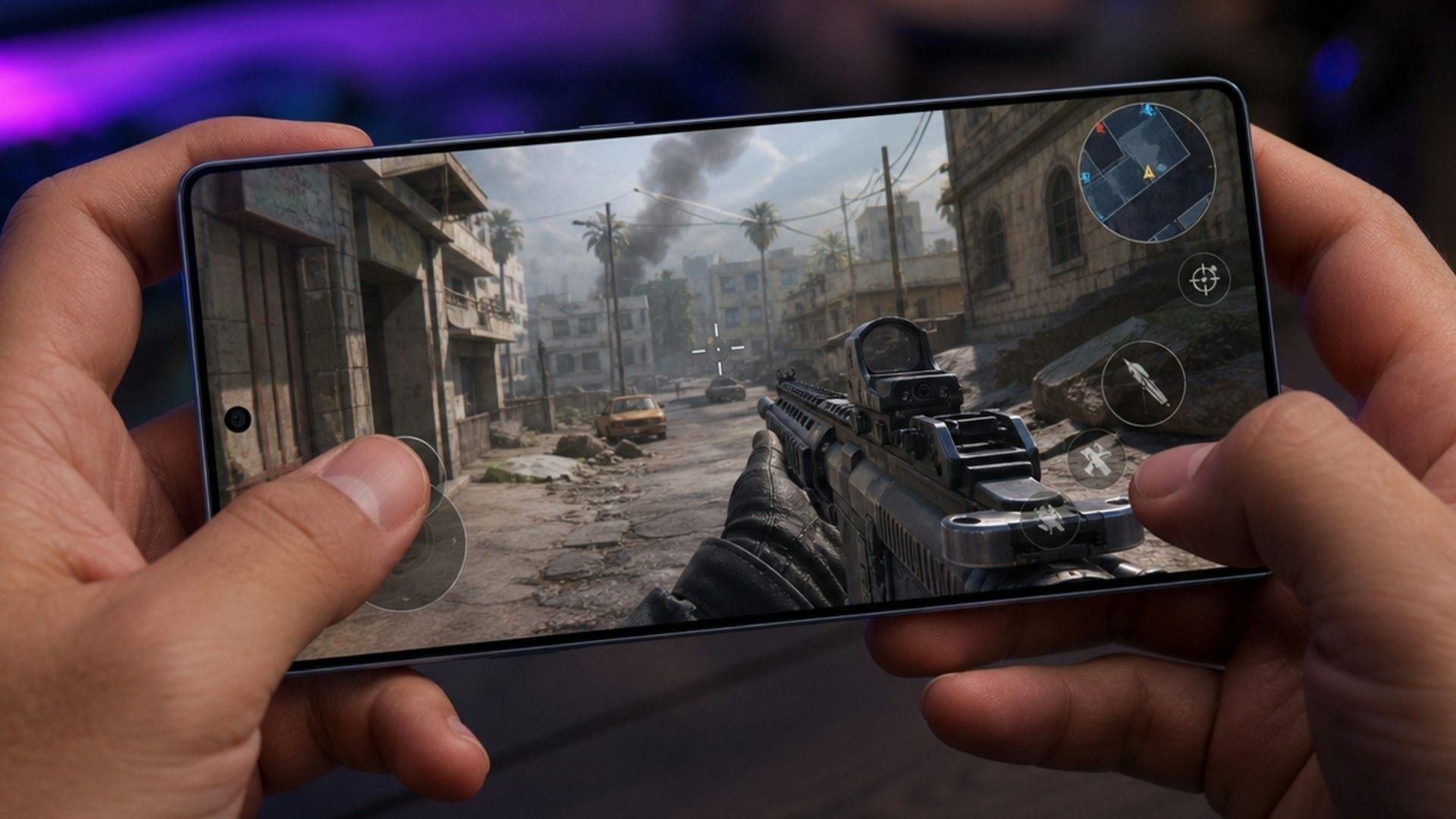
Graphics, style, and visual tweaks
Setting | Value | Why |
|---|---|---|
Graphics | Smooth | Opens Ultra Extreme. Cuts scene cost so the GPU can hold 120. |
Frame Rate | Highest stable row | Ultra Extreme, Extreme+, or Extreme. |
Style | Classic or Colorful | Higher contrast. Enemies separate from grass and shade. |
Shadows | Off | GPU headroom. Fewer dark corners. |
Anti-aliasing | Off | Soft edges cost frames on a small panel. |
Auto-adjust graphics | Off | Stops a mid-fight drop that feels like stutter. |
Brightness | 125–150% | Dark rooms and shade. No extra GPU work. |
Show FPS | On | You need a number, not a feeling. |
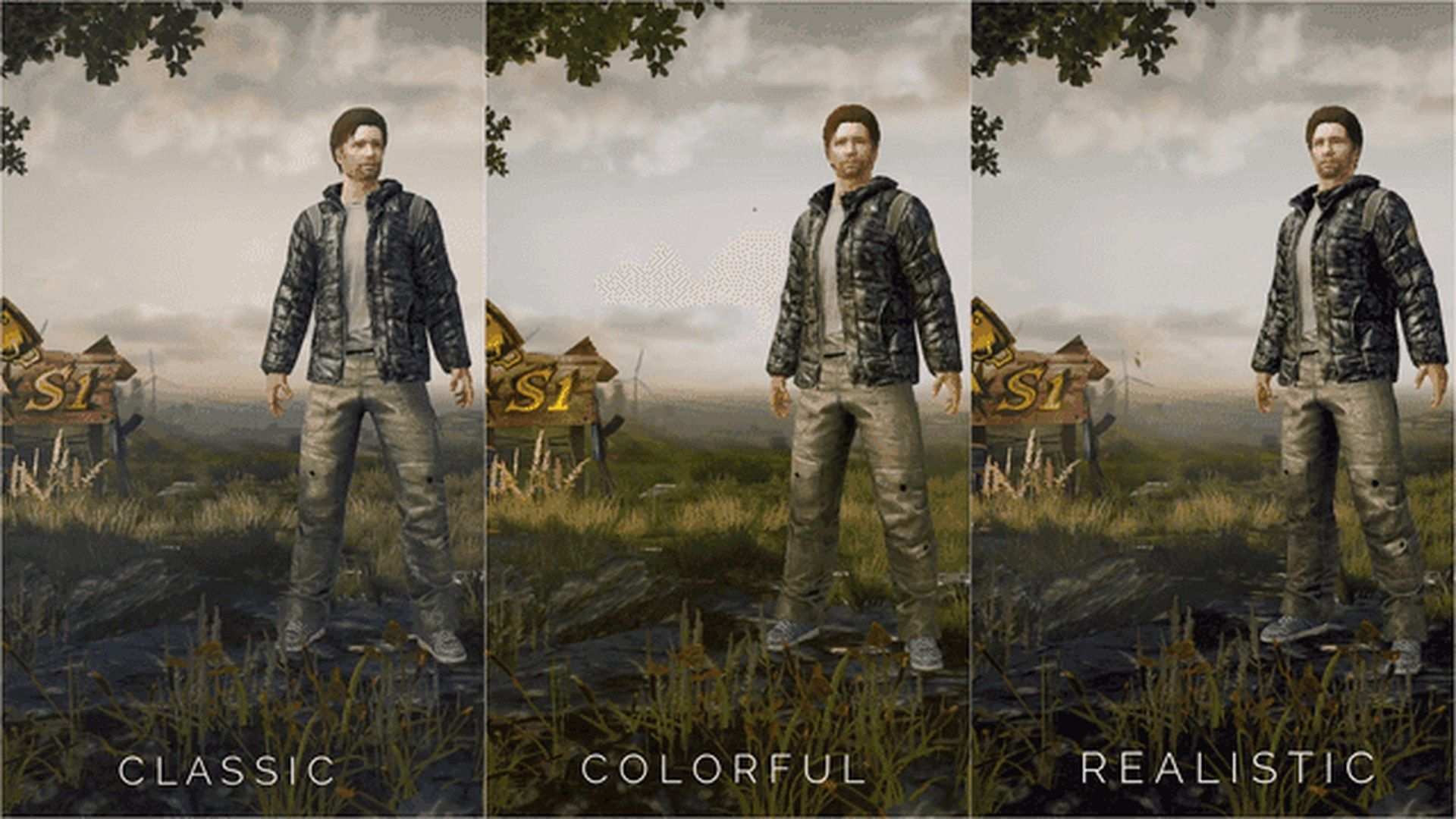
Realistic, Soft, and Movie add post-process that hides players in shade. Classic or Colorful is the competitive pair.
SFX Quality at Low keeps footsteps and gunfire. Turn the in-game mic and voice chat off when your squad is on Discord or silent. Real-time voice uses CPU and uplink that you can spend on frames and ping.
Version 4.5 runs NARUTO: Ninjas Assemble on Erangel, Livik, and Sanhok through 7 September 2026. Hidden Leaf Village and ninjutsu effects add scene cost. If Ultra Extreme hitches in Konoha, drop brightness and keep shadows off before you switch to 90.
Sensitivity and gyroscope
High FPS does not change the gun pattern. You see the next recoil step sooner, so the same pull feels easier. Start here, then move 5% at a time in Training Ground.
Camera | Start |
|---|---|
TPP No Scope | 95–120% |
FPP No Scope | 100–130% |
Red Dot / Holo ADS | 60–70% |
3x ADS | 25–30% |
6x ADS | about 20% |
8x ADS | 12–15% |
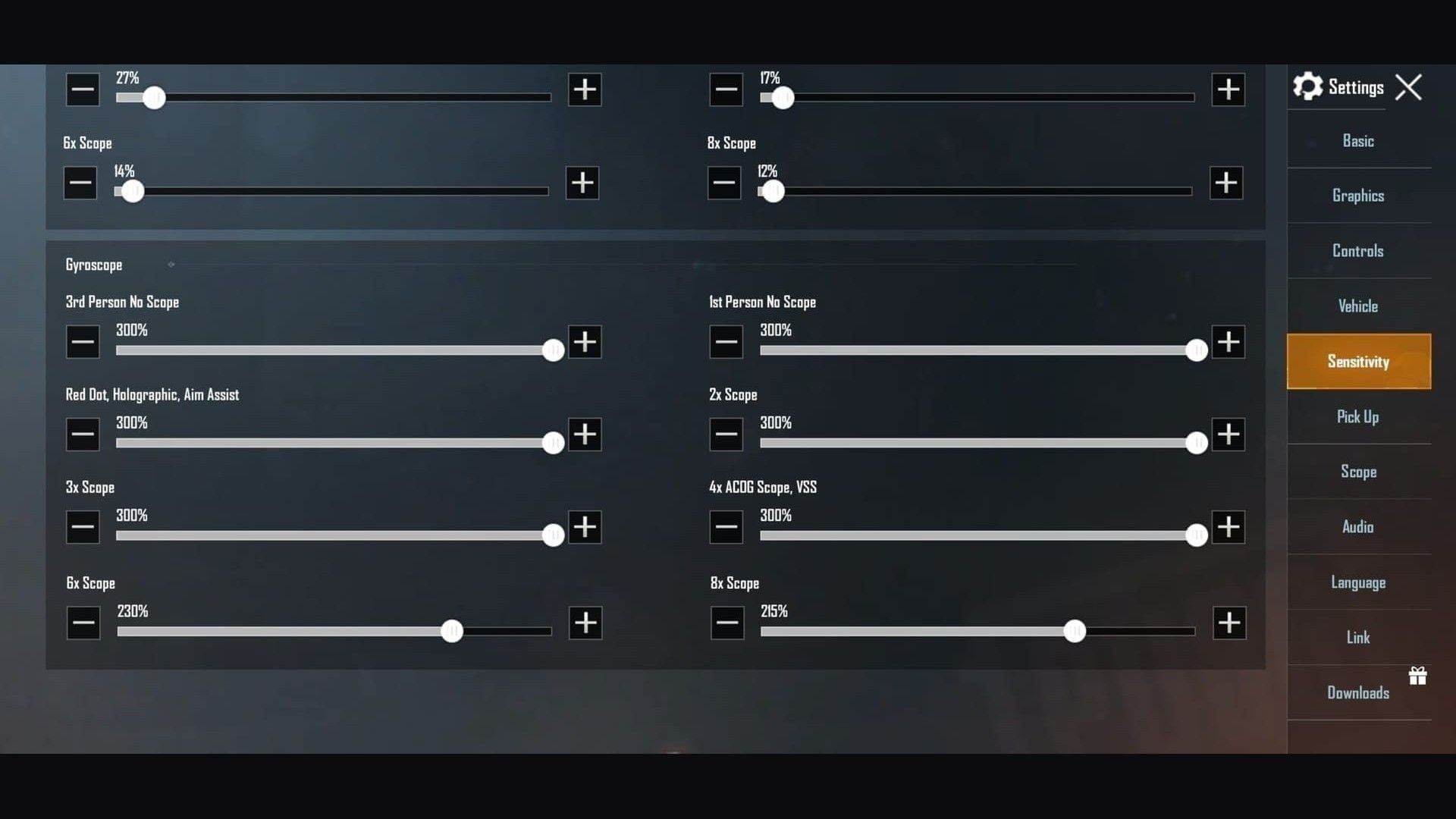
Gyroscope | Start |
|---|---|
No Scope | 300% |
Red Dot / Holo | 280% |
3x | 180% |
6x | 120% |
8x | 90% |
Use finger swipes for big turns. Use tilt for the last inches of spray. Import a code from the 120Hz gyroscope codes page, then prove it on your own panel. If 120 hitches, lock 90 and cut camera about 5%.
Need UC for a sight you practice? Buy PUBG Mobile UC on BitTopup. Player ID only. How to top up PUBG UC on BitTopup walks through the ID step.
HUD layout
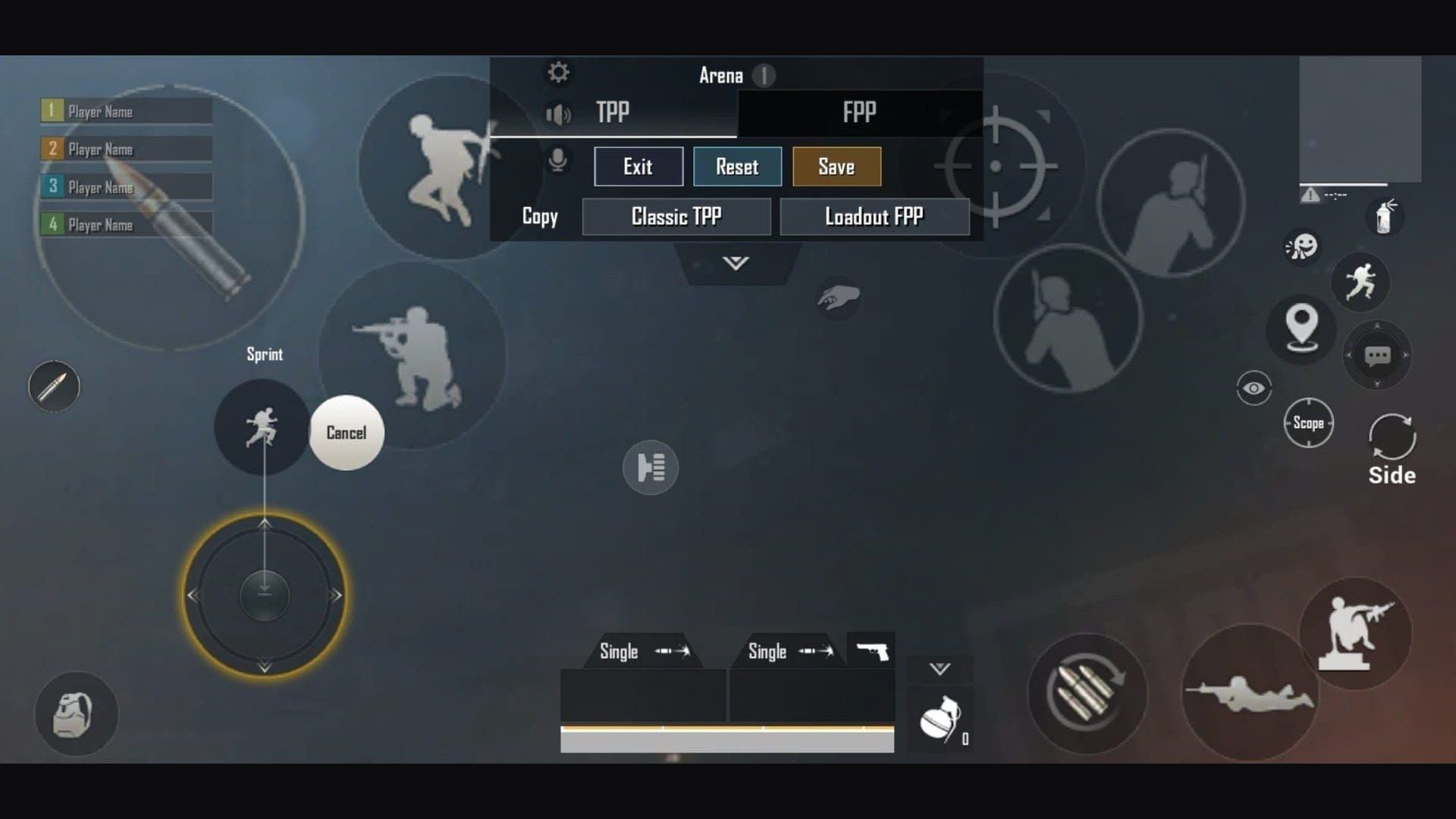
A 3- or 4-finger claw lets you move, aim, scope, and fire at the same time. Enlarge Fire, Scope, and Peek so a miss-tap is harder. Fit the layout to the panel size and your thumbs. The 4-finger claw and gyro guide has a starting overlay.
Android and iOS prep
Android
Settings → About phone → tap Build number seven times to open Developer options. Set Background process limit to 3 or 4 so the game keeps RAM.
Turn on the maker's game mode: Samsung Game Booster (performance, auto-optimize off), Xiaomi Game Turbo, OnePlus High Performance Mode, ASUS X Mode / Armoury Crate. On Galaxy, Game Booster can recover frames on a warm mid-range chip. On OnePlus, turn off Adaptive Brightness and Smart Resolution if Ultra Extreme hitches.
Leave Power Saving off. Close apps before launch. Use Repair on the login screen when the client feels dirty after a patch.
ROG Phone II owners who see drops can set non-standard screen to rounded corners, X Mode to Ultimate, and temperature control to High.
iOS
Turn off Background App Refresh for apps you do not need in a match. Pause automatic downloads for the session.
Settings → Accessibility → Motion → Limit Frame Rate must be off. That toggle caps the panel and hides a real 120.
Some older iOS builds needed a Control Center screen recording to lock ProMotion at 120 Hz. On iOS 26 that recording encodes at native resolution, raises GPU load, and heat-throttles after a few minutes. Skip it on current iOS. If a ProMotion iPhone feels capped after Ultra Extreme, follow the iPhone 17 Pro 120 FPS setup and test in Training Ground.
Network
Ping above 100 ms makes a 120 panel look like stutter. Pick the closest server. Prefer a stable Wi-Fi link. Turn off auto-switch between Wi-Fi and cellular so a roam does not freeze a peek.
Close streams, cloud backup, and store updates for the session. Voice chat adds uplink. If the squad is on Discord, leave the in-game room off.
Heat and battery
Setup | Typical hold at 120 | What happens next |
|---|---|---|
Gaming phone with a fan (ROG, RedMagic) | 30–60+ minutes from a cool start | Heat rises slower. Fan noise is the cost. |
Premium sealed flagship | 10–20 minutes, then 90–100 FPS | Mid-40s °C is the usual trip point. |
Standard flagship | about 20 minutes, then 75–90 FPS | Compound fights drop first. |
120 FPS uses about 40–50% more battery than 60. A 5,000 mAh Android often spends 25–30% in a 30-minute match at 120 versus 15–18% at 60. A 4–5 hour 60 FPS night becomes about 2.5–3 hours at 120. Many phones start saving power under 25% battery.
Charging in a match adds heat on a sealed flagship. Pull the case. Play out of sun. Take 5–10 minutes between ranked games. A clip-on cooler can cut skin temp by 10–20 °C and stretch a stable 120 from one match into two.
The jump from 60 to 90 is the one most players feel. 90 to 120 is smaller if the line wobbles. Lock 90 when the FPS counter cannot hold 110 in a compound.
Troubleshooting
Ultra Extreme missing or greyed out
Client below 4.5.0 (120 first shipped in 3.2; 4.5 has the wider list).
SKU not on the whitelist.
Graphics not Smooth.
System refresh below 120 Hz.
Under about 20 GB free.
Region on an older build. Restart after the store update.
Lag that looks like low FPS
Watch ping and FPS as two numbers. Network lag is a freeze or a teleport. Performance lag is a low, sticky counter.
Clear cache. Use Repair on the login screen. Reinstall last, because you will download the maps again.
Crashes
Free storage first. Close background apps. Phones with 3 GB RAM or less should run PUBG Mobile alone. Install OS updates when the maker ships game-related GPU fixes.
GFX tools, Magisk modules, and custom configs that force 120 break the Terms of Service and can ban the account. Stay on the official menu.
FAQ
Can a low-end phone run PUBG Mobile at 120 FPS?
No. Ultra Extreme needs a 120 Hz panel, a flagship chip (Snapdragon 8 Gen 2 / Dimensity 9200 class or Apple A15 + ProMotion), about 8 GB RAM, and a whitelist slot. Aim at a flat 60 on Smooth. Watch for PUBG Mobile Light if storage is the limiter.
Why do I not see 90 FPS or 120 FPS?
The SKU has to be supported, Graphics has to be Smooth, and the system refresh has to match. Update to 4.5.0+, lock 120 Hz, restart. Extreme or Extreme+ means you cap at 60 or 90.
How much battery does 120 FPS use versus 60 FPS?
About 40–50% more. Plan on 2.5–3 hours instead of 4–5, and 18–25% per match instead of 8–12% on a typical pack.
What is the difference between Colorful and Realistic?
Colorful raises contrast so players pop off grass and walls. Realistic adds grade and shade that hide a peek and cost GPU time.
How do I keep the phone cooler in a long session?
Pull the case. Skip charging in-match on a sealed flagship. Play in a cool room. Break 5–10 minutes between games. A clip-on cooler helps more than another software toggle. Fan phones hold 120 longer.
Should I use a GFX tool to unlock 120 FPS?
No. Those tools violate the Terms of Service. They also overheat phones that Krafton left off the list on purpose.
Conclusion
PUBG Mobile 120 FPS settings in August 2026 are Smooth plus Ultra Extreme, on a whitelisted phone, on Version 4.5 or newer, with the display locked at 120 Hz. Confirm the row, turn Show FPS on, and keep 90 if the line hitches. The whitelist grows with each major patch.
When you need UC for Pass or crates, buy PUBG Mobile UC on BitTopup. Player ID only.