


Ace Racer crashing on startup on your Android phone? Fix black screens, OBB errors, and sudden launch freezes with this verified troubleshooting guide.
Tapping the Ace Racer icon only to watch a splash screen flash and kick you back to your home screen is a known issue on Android. Boot crashes usually stem from botched asset verification, blocked storage permissions, or an aggressive operating system task killer. NetEase launched the title globally on March 16, 2023, packing high-fidelity graphics and over 80 authorized vehicles into the mobile client. That visual load demands strict memory headroom and intact resource files right from the first frame.
Don't delete and redownload the whole package right away. A step-by-step diagnostic saves gigabytes of bandwidth and gets you into the lobby faster.
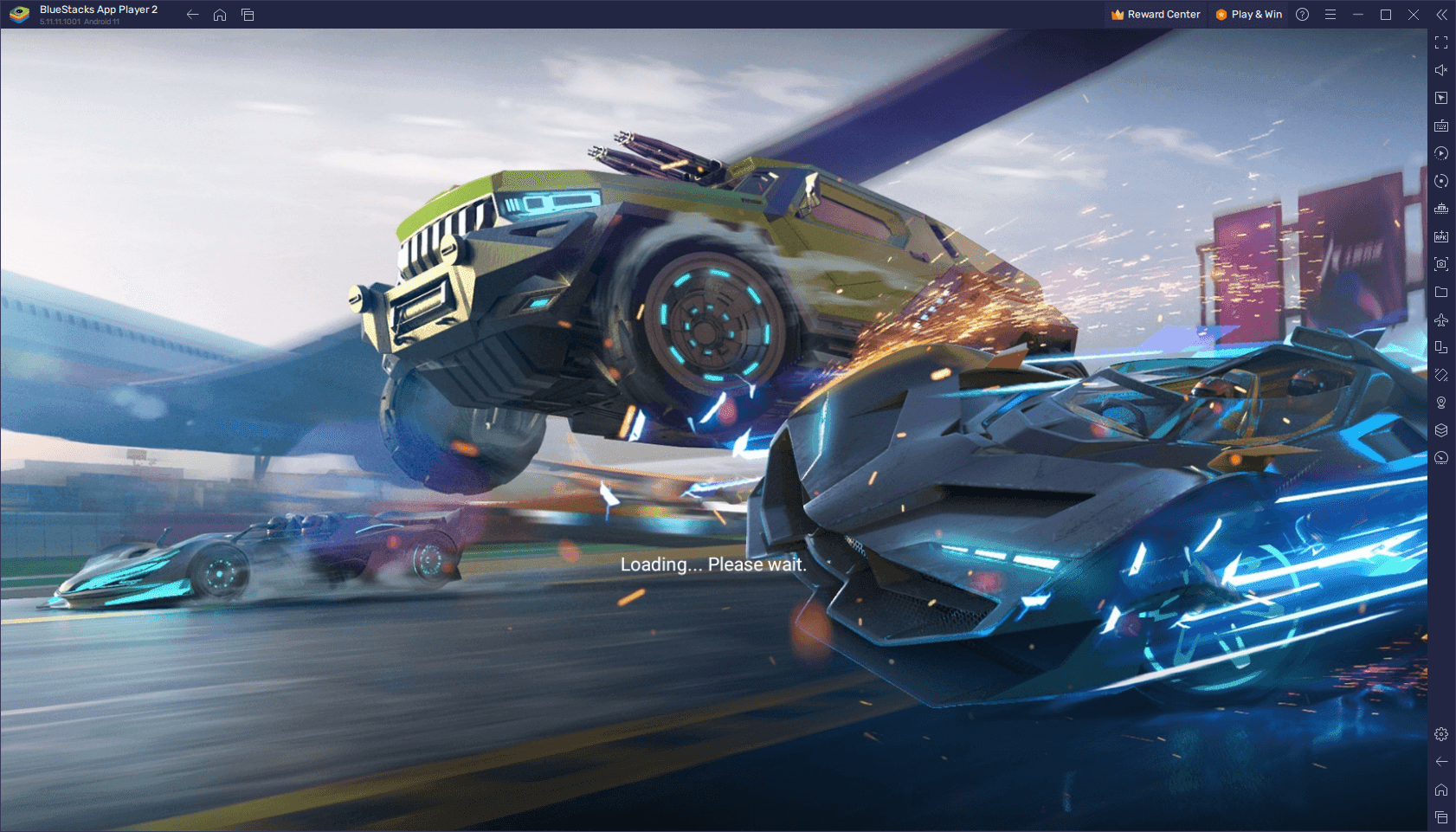
Why Ace Racer Shuts Down Before the Starting Line
When an Android game drops immediately after launch, the operating system is usually stepping in to terminate the process. Identifying the exact trigger narrows down the repair.
Most startup failures stem from three root causes:
- Resource Allocation Failures: The engine attempts to unpack shader caches and 3D car models into active memory, exceeding available RAM.
- File Read & OBB Exceptions: The base APK boots, but sandboxed storage rules block access to secondary expansion files in internal storage.
- Authentication & Handshake Timeouts: The client fails to validate security tokens against NetEase login servers due to unsynchronized system clocks or unstable network handshakes.
Out-of-memory (OOM) errors trigger the vast majority of instant shutdowns. On launch, the engine requests a large block of working memory for textures, interface assets, and track geometries. If the system cannot free that space immediately, Android fires an OOM kill command to keep background system processes alive.
Scoped storage restrictions present another hurdle. If the client cannot read and verify its OBB files within the first few milliseconds of runtime, it exits cleanly to the desktop without presenting an error dialog.
Hardware Verification and Android Minimum Specifications
Check your device against the hardware baseline before reconfiguring software. Ace Racer demands substantial graphic processing power; running under minimum specs triggers hard crashes during initial shader decompression.
Regional builds differ slightly: the global release lists Android 4.3 as a baseline, whereas specific regional packages require Android 5.0. In practice, post-launch content patches have pushed actual hardware requirements higher.
| Component | Minimum Specification | Recommended Specification | Impact on Startup |
|---|---|---|---|
| Android OS | Android 4.3 (Global) / Android 5.0 (Regional) | Android 10.0 or higher | Prevents instant system compatibility shutdown |
| System RAM | 4 GB | 6 GB to 8 GB | Eliminates launch Out-of-Memory (OOM) app kills |
| Processor | Quad-Core (4 Cores) | Octa-Core (Snapdragon 700/800 series or equivalent) | Handles initial shader and geometry compilation |
| Free Storage | 10 GB available space | 15 GB+ available space (>10% device buffer) | Allows local unpacking of high-resolution vehicle files |
| Storage Access | Read/Write file permissions granted | Unrestricted scoped storage access | Lets the app parse the /sdcard/Android/obb/ directory |
Running Ace Racer with less than 4 GB of RAM or under 10 GB of free storage regularly causes the game client to fail during initial texture loading.
If your phone exceeds these hardware thresholds, focus on resolving software misconfigurations, damaged cache indexes, and file permission locks.
Priority Troubleshooting Matrix for Launch Failures
Avoid full reinstalls until you test targeted fixes. Redownloading gigabytes of track models and vehicle audio takes time and rarely fixes permission or cache conflicts.
Match your launch symptom to the primary repair path below:
| Symptom | Root Cause | Target Location | Primary Resolution |
|---|---|---|---|
| Instant crash on app icon tap | Corrupt launch cache or dead process | Settings > Apps > Ace Racer | Force stop the app and clear application cache |
| Infinite black screen after logo | Missing or inaccessible OBB data | Settings > Apps > Ace Racer > Permissions | Grant storage access; reset Download Manager cache |
| Crash during NetEase splash screen | SSL handshake or clock sync error | Settings > System > Date & Time | Enable Automatic Date & Time via network servers |
| Freeze while loading race track | Insufficient swap memory or full storage | Device Internal Storage | Free up storage to exceed 10% total capacity |
| App keeps stopping after OS update | Outdated system cache partition | Android Recovery Mode | Execute Wipe Cache Partition via hardware keys |
Applying targeted fixes in this sequence resolves the vast majority of boot loops without deleting your saved configurations or custom keymaps.
Step 1: Force Stop and Clear Game Cache Data
Unexpected app shutdowns frequently leave broken scratch files in the local cache. When you relaunch the game, the engine reads these damaged files and faults immediately.
Clearing the application cache purges these corrupted launch fragments without wiping your local login credentials or cloud-synced account data.
Settings -> Apps -> See All Apps -> Ace Racer -> Storage & Cache -> Clear Cache
Step-by-step cache wipe:
- Open your device Settings menu.
- Tap Apps (or Application Manager).
- Select Ace Racer from the list.
- Tap Force Stop to terminate hanging background processes.
- Tap Storage & Cache.
- Tap Clear Cache.
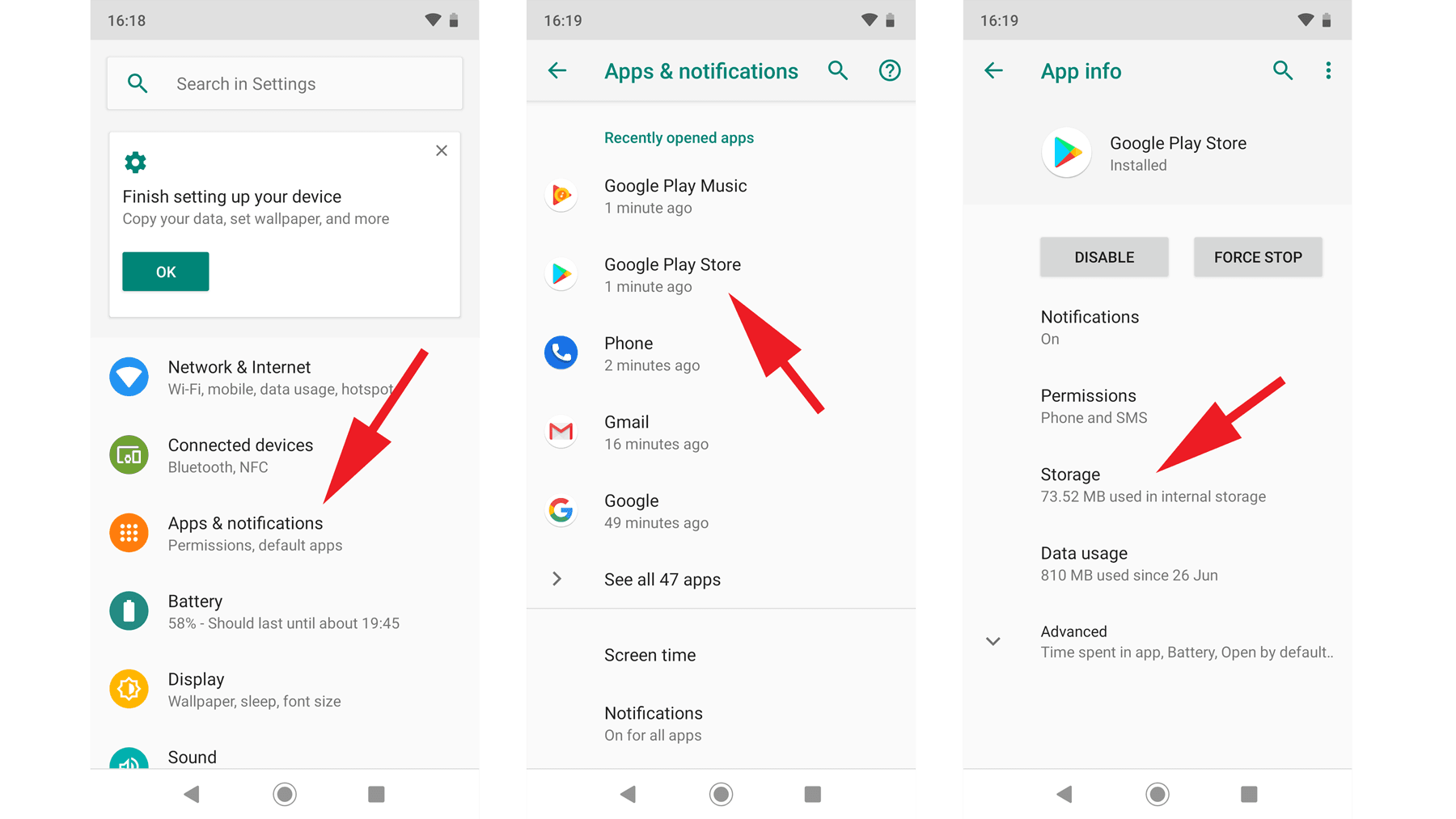
Leave Clear Data alone for now. Clearing cache removes only transient shader files and decompression logs. If this gets the game running, you can grab Ace Racer tokens online and jump straight into match lobbies without waiting on a massive asset re-download.
If crashes persist, check your OBB files and storage permissions next.
Step 2: Resolve OBB Expansion and Android Storage Access
Ace Racer divides its installation into the base application executable (APK) and a primary graphics archive (OBB). The OBB file houses car models, textures, and track geometries. At launch, the game must read this archive inside /sdcard/Android/obb/.
If Android blocks read access or if the file download was truncated, the screen turns black for a second before closing.
Grant Direct Storage Permissions
Modern Android builds enforce strict storage sandboxing. If the client did not receive explicit permissions during installation, enable them manually:
- Navigate to Settings > Apps > Ace Racer.
- Tap Permissions.
- Tap Files and Media (or Storage).
- Select Allow management of all files (or Allow access to media only).
- Reboot your device and relaunch the game.
Reset Google Play Services and Download Manager
An interrupted download or update often leaves a damaged OBB container in storage. Resetting the download service forces the OS to re-verify archive integrity:
- Open Settings > Apps.
- Tap the menu icon in the top corner and select Show System Apps.
- Tap Download Manager.
- Open Storage & Cache and select Clear Data.
- Return to the app list, open Google Play Services, tap Storage, and tap Clear Cache.
- Restart your phone.
This clears broken download handshakes and forces Ace Racer to validate its local asset archives on next boot.
Step 3: Stop Out-of-Memory Crashes and OEM Task Killers
Running the game on 4 GB of physical RAM places the client at the edge of device stability. Android aggressively compresses background memory to preserve system stability. During initial asset decompression, OEM software layers like Samsung One UI, Xiaomi HyperOS, or OnePlus OxygenOS can misidentify the sudden RAM surge and terminate the process.
Manage Free Storage Buffers
Storage capacity directly dictates memory paging. When physical RAM fills, Android uses virtual memory swap space on internal flash storage. If free storage falls below 10%, the system cannot create swap files, forcing an instant crash.
Keep at least 10 GB of unallocated internal storage available. On a 128 GB device, maintain at least 12.8 GB of free space. Delete recorded video files, uninstall unused apps, and empty system trash bins to maintain this buffer.
Disable Aggressive Battery Optimizations
OEM battery managers frequently flag high launch CPU loads as runaway processes. Whitelist the app to prevent background kills:
- Open Settings > Apps > Ace Racer.
- Tap Battery or App Battery Usage.
- Set the profile to Unrestricted (or disable optimization).
- Add Ace Racer to your phone's built-in gaming mode or high-performance profile if available.
Unrestricted power privileges prevent the OS from severing the main launch thread while shaders compile.
Step 4: Fix Black Screen Freezes and Network Sync Errors
Launch freezes are not always graphical. Immediately after the title screen, the client initiates an encrypted SSL handshake with NetEase authentication servers. An interrupted handshake leaves the game hanging on a black screen or causes an abrupt exit.
Sync System Date & Time
A device clock offset of just a few seconds desynchronizes SSL certificates and server time tokens, prompting an instant security termination.
Settings -> System -> Date & Time -> Toggle 'Set time automatically' ON
- Open Settings > System > Date & Time.
- Disable manual date and time overrides.
- Turn on Set time automatically (or Use network-provided time).
- Turn on Set time zone automatically.
- Restart the device.
Switch Network Pipelines
DNS routing failures can stall initial authentication packets. If you are connected to Wi-Fi, switch to mobile data for the first launch (or vice versa). Once the client completes authentication and opens the main garage, you can return to your standard Wi-Fi network.
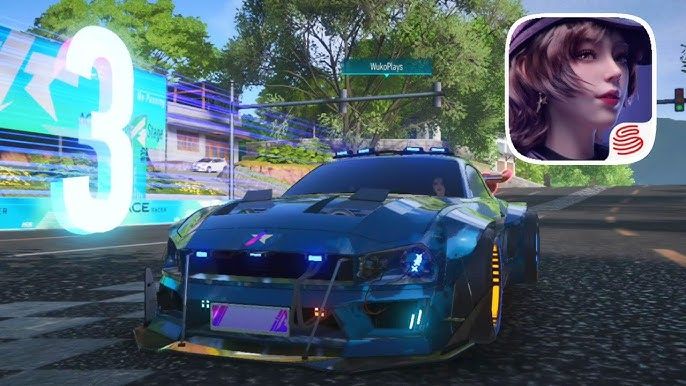
With a working connection and smooth launch performance, you can securely grab a quick Ace Racer top up to lock in limited-time vehicle banners and seasonal speed pass perks.
Step 5: Android System Recovery and Clean Reinstallation
When basic troubleshooting fails, the culprit is typically a corrupt Android system cache partition or a damaged game binary.
Wipe the System Cache Partition
OS updates frequently leave stale cache files in system memory. A cache partition wipe purges these operating system leftovers without erasing personal photos, contacts, or app data.
- Power down your device completely.
- Hold the Power Button and Volume Up simultaneously until the recovery logo displays (some models use Power + Volume Down).
- Release both buttons to access the Android Recovery Menu.
- Use the volume keys to highlight Wipe cache partition.
- Press the Power Button to execute.
- Select Reboot system now once finished.
Perform a Full Clean Reinstallation
If the system cache wipe fails to clear the crash, perform a clean reinstall. Tapping uninstall from the home screen often preserves broken subfolders. Use this sequence instead:
- Open Settings > Apps > Ace Racer.
- Tap Storage & Cache, then select Clear Data.
- Return to the previous screen and tap Uninstall.
- Reboot your phone completely.
- Download Ace Racer from your app store.
- Keep your screen active and connected to steady Wi-Fi while the client extracts its 10 GB base package.
Platform Differences and Regional Client Quirks
Operating stability varies across Global builds, regional releases, and PC emulator environments.
| Platform / Build | Minimum OS Version | Critical Startup Bottleneck | Primary Stability Fix |
|---|---|---|---|
| Global Android Client | Android 4.3 | Scoped storage blocking OBB read in /sdcard/Android/obb/ | Manually enable file management permissions in app settings |
| Regional Android Builds | Android 5.0 | Region-locked server handshakes & strict OS checks | Sync network time and verify regional network compatibility |
| Android PC Emulation | Android 9.0 (Emulated 64-bit) | Dedicated GPU driver allocation & memory caps | Allocate at least 4 CPU cores and 4096 MB RAM in emulator settings |
Global and regional builds enforce different base operating systems, while emulator setups require manual allocation of at least 4 processing cores to prevent boot freezes.
For PC emulators, startup crashes typically trace back to insufficient virtualization resource limits. Set your emulator instance to 64-bit Android, allocate a minimum of 4 CPU cores and 4 GB RAM, and enable direct dedicated GPU rendering.
Frequently Asked Questions
Why does Ace Racer crash immediately on startup on Android?
Startup crashes typically stem from corrupted cache files, insufficient available RAM, missing OBB game files, or restricted storage permissions. Ensuring your device has at least 4 GB of RAM, granting file access permissions, and maintaining 10 GB of free storage resolves most launch failures.
How do I clear the cache for Ace Racer on Android?
Open your device Settings, navigate to Apps or Application Manager, and select Ace Racer from the list. Tap on Storage & Cache, then tap the Clear Cache button to remove temporary files without deleting your account settings.
What are the minimum system requirements to run Ace Racer on Android?
Ace Racer requires Android 4.3 or higher for the Global edition (some regional builds require Android 5.0+) along with a 4-core processor and roughly 10 GB of free internal storage. Devices should feature at least 4 GB of physical RAM to avoid sudden out-of-memory crashes during asset loading.
Why does Ace Racer get stuck on a black screen or the NetEase logo?
A black screen right after the logo indicates that the game cannot access its secondary OBB expansion files or that its server authentication handshake timed out. Verify that file management permissions are enabled for the app and ensure your device clock is set to automatic network time.
Does clearing Ace Racer app data delete my account progress?
Clearing app data only removes locally stored temporary settings and downloaded expansion files. As long as your game account is linked to your NetEase account, Google Play profile, or social login, your vehicles, currencies, and race progress will automatically restore when you log back in.
How do I fix Ace Racer crashing after a major Android OS update?
Major operating system upgrades often leave behind invalid cached binaries. To fix post-update crashes, wipe your device system cache partition via Android Recovery mode, ensure the app is updated to its latest version, or perform a clean reinstallation of the game.
Final Check: Getting Back on the Track
Diagnosing startup crashes in Ace Racer requires methodical elimination. Hardware processing limits are rarely the primary cause; issues almost always trace to corrupted cache files, blocked OBB directory permissions, or aggressive OEM memory management.
Start with a cache wipe. If that fails, confirm file access permissions, maintain at least a 10% storage buffer for virtual swap space, and verify that system time is set to automatic.
Once your client launches reliably, keep adequate storage headroom and check out Ace Racer recharge options when you want to expand your garage and claim seasonal rewards.