


To ensure instant transaction alerts for your MyCard (TW) account, you must configure operating-system-level notification permissions and disable aggressive power management. On Android 13 (API level 33) and higher, push notifications are disabled by default for new installs until explicitly authorized, while iOS delivers alerts through Apple's Push Notification service (APNs) directly to your screen even if Background App Refresh is turned off.
Android 13+ Runtime Notification Setup
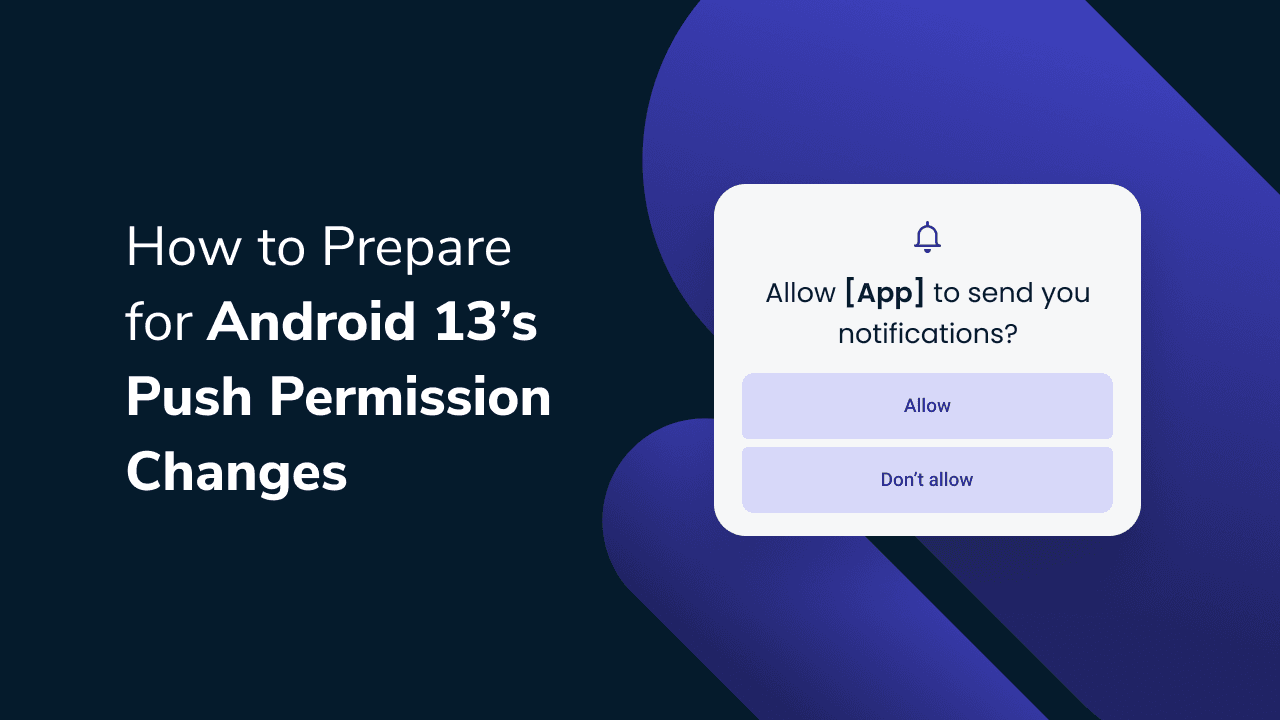
Starting with Android 13 (API level 33), Google shifted notification handling to an explicit opt-in model. If you install or reinstall your wallet app on a modern Android device, alerts will not appear until you approve the runtime prompt according to Android Developer Documentation.
If you previously dismissed this prompt, follow these steps to restore real-time alerts:
- Open your phone's Settings menu.
- Tap Apps (or Apps & notifications) and locate your MyCard app.
- Select Notifications.
- Toggle All MyCard notifications to On.
- Review specific notification channels if displayed. Ensure transaction receipts, security notices, and verification prompts remain toggled on while toggling off marketing or promotional channels.
If notifications remain disabled at the system level, all internal notification channels are blocked regardless of any settings configured inside the app itself.
iOS Push Delivery and Background App Refresh
iPhone users frequently mistake Background App Refresh for push notification delivery. On iOS devices, mobile push notifications are dispatched from developer servers through Apple's Push Notification service (APNs), operating entirely independently of background app execution as reported by iDrop News.
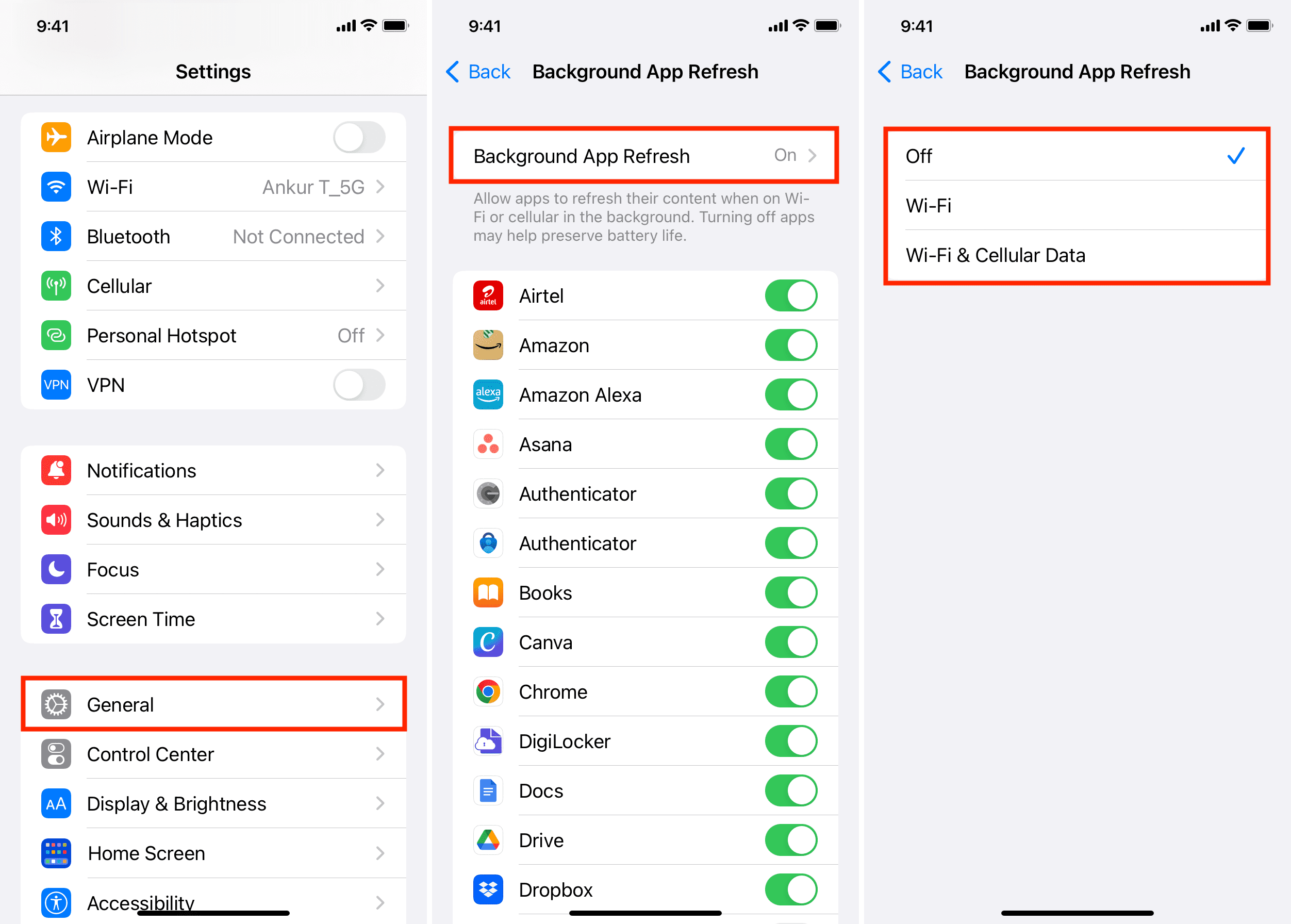
Disabling Background App Refresh under Settings > General > Background App Refresh does not block incoming push alerts on iOS. Your transaction receipts and verification notices still arrive immediately on the Lock Screen, Notification Center, or an Apple Watch. Leaving Background App Refresh off simply means the app will take a couple of seconds to fetch fresh account balances or voucher histories after you tap the alert to open it.
To verify your iOS notification pathway:
- Open iOS Settings.
- Scroll down and tap your MyCard application.
- Tap Notifications.
- Ensure Allow Notifications is enabled.
- Set alerts to Immediate Delivery rather than Scheduled Summary.
- Select Banners, Notification Center, and Lock Screen checkmarks.
Battery Saver and Low Power Mode Throttling
Aggressive power management delays far more alerts than internal app bugs. When Android enters Battery Saver or iOS activates Low Power Mode, the operating system restricts background network syncs and wake timers according to Whizz Experts.
Under active power-saving modes, notifications are frequently batched. Instead of arriving in real time, alerts remain queued on device servers until you actively wake the screen, unlock the phone, or plug the device into a charger. If you rely on timely alerts to authorize wallet transactions or catch unauthorized top-ups:
- On Android: Navigate to Settings > Apps > MyCard > Battery, and set the background battery usage to Unrestricted instead of "Optimized" or "Restricted."
- On iOS: Avoid keeping Low Power Mode active continuously under Settings > Battery if you require immediate verification banners while your screen is dark.
SMS Authentication vs. Push Alerts: Regional Platform Differences
When troubleshooting MyCard alert settings, verify which regional service you are using. Documentation from National Australia Bank describes an Australian "MyCard App" (mycard.com.au) used for credit card management. That platform handles login security and transaction verification strictly via 6-digit SMS one-time passcodes (OTPs) and biometric logins rather than app push notifications.
By contrast, the Taiwanese platform MyCard (TW) operates as a digital wallet and gaming voucher ecosystem. Do not rely on Australian banking documentation when configuring your Taiwan MyCard account. Because specific internal sub-menus for Taiwan MyCard are frequently updated across app builds, system-level QoS controls on Android and iOS remain your most reliable tool to guarantee prompt delivery.
Recommended Quality-of-Service Profile
| Setting Layer | Recommended Value | Operational Trade-off |
|---|---|---|
| Android 13+ Runtime Permission | Allowed (Android Developer) | Required for any alerts to appear on your device. |
| Android Battery Optimization | Unrestricted (Whizz Experts) | Prevents batching or delayed delivery at the cost of minimal battery draw. |
| iOS Push Notifications | Allowed / Immediate (iDrop News) | Ensures Lock Screen and banner popups arrive instantly. |
| iOS Background App Refresh | Disabled (Optional) (iDrop News) | Conserves battery; app takes a few seconds to refresh balances upon launch. |
| System Power Saver | Off / Disabled (Whizz Experts) | Eliminates notification queuing caused by OS sleep intervals. |
Frequently Asked Questions
Does turning off Background App Refresh stop push notifications on iOS?
No. Push notifications on iOS are delivered through Apple's Push Notification service (APNs) directly from developer servers according to iDrop News. They appear on your Lock Screen and Notification Center whether Background App Refresh is enabled or disabled.
Why do mobile push notifications arrive late when Battery Saver is enabled?
Battery Saver and Low Power Mode limit background network checks and reduce device wake intervals, batching incoming notifications until the phone is actively unlocked, woken up, or plugged in as documented by Whizz Experts.






![7 Safest & Cheapest MyCard (TW) Sites May 2026 [Ranked]](https://pic.bittopup.ru/apiUpload/8e128fd5242ca001e896bfbd7489810f.jpg?imageView2/0/w/80/h/80/format/webp/ignore-error/1 "7 Safest & Cheapest MyCard (TW) Sites May 2026 [Ranked]")